How to use a green screen comes down to a clear sequence: light a uniform green backdrop separately from your subject, shoot with nothing green on the subject, then key the green out in editing software.
Green screen work sits inside a wider plan, so pair this guide with your video production checklist before shoot day.
How chroma keying works
Chroma keying removes one colour from a shot so a different image can show through. InFocus Film School describes chroma key as singling out the chosen colour, usually green, and rendering it transparent. The technique is a form of compositing: two images or video streams are layered into one shot.
That mechanism explains almost every rule that follows. The keying software can only make transparent what it can identify as the key colour. Anything on your subject that matches or reflects that colour will vanish with the background. Any patch of the screen that is darker, brighter or a different shade will key unevenly. Savage Universal notes that chroma key software works best when the background has uniform colour across its surface. Most of your effort on set therefore goes into making the screen uniform and keeping the subject clearly different from it.
Green is the usual choice because it generally provides more luminance than blue, which makes it easier to light, according to InFocus. The trade-off is that green bounces more colour back onto the subject, which is why lighting separation and distance matter so much in the sections below.
Equipment checklist
You need a backdrop, lights that spread soft light, a camera that can be locked off, and editing software with a keyer. The backdrop is the main decision, and its size should follow the framing of your shot.
| Item | Typical size or cost | Planning use |
|---|---|---|
| Backdrop for one person | 5 ft x 7 ft | Enough for head-and-shoulders or seated talking shots |
| Backdrop for groups or full-body | 10 ft x 20 ft | Choose this size if feet and floor will be in frame |
| Fabric muslin sheet | USD 50 to 100; about 9 ft x 10 ft, up to 9 ft x 20 ft | Flexible and cheap, but it must be hung or stretched smooth |
| Portable pop-up screen | About USD 50 | Quick to set up and store for a small shoot space |
| Starter kit | USD 100 to 150; sheet, basic lights, backdrop stand | Good first purchase if you own no lighting or stand |
Backdrop sizes come from Savage Universal, and prices and kit contents from WeVideo.
Beyond the backdrop, plan on softbox lighting or similar diffused fixtures. Savage Universal advises that natural light may suffice outdoors, while indoors you will want proper lights to get a well-lit screen. Add a tripod so the camera can stay static, and decide on your keying software before the shoot so you know what the footage must satisfy.
Lighting the screen evenly
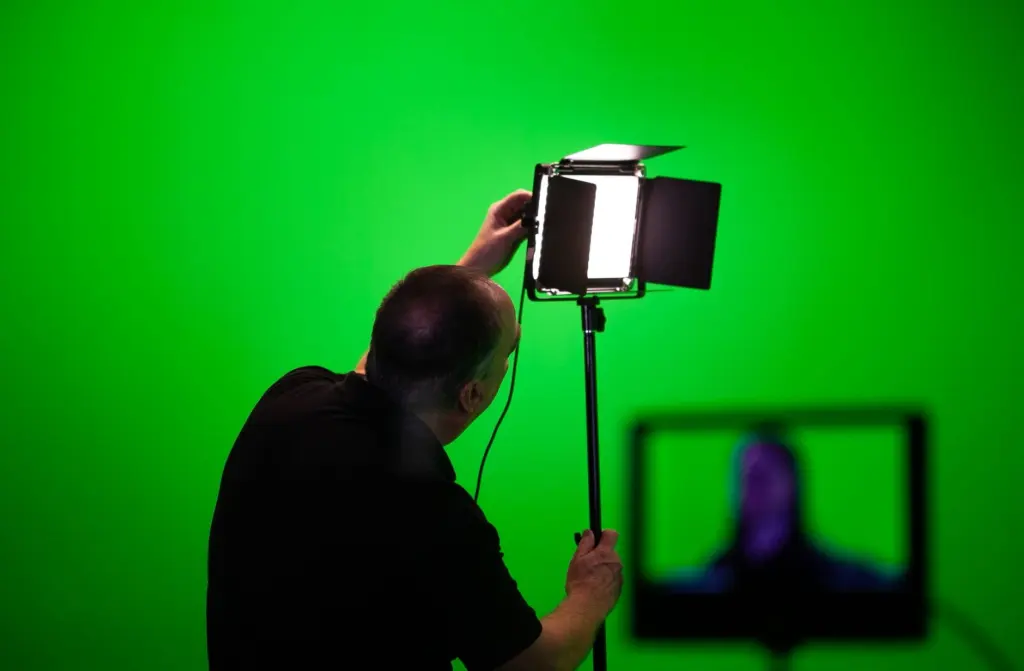
To light a green screen evenly, light the screen first, use soft diffused sources, and keep the subject far enough forward that neither shadows nor green reflections reach them. Work through it in this order:
- Light the screen before the subject. Tagvenue recommends setting the backdrop lighting first and the subject lighting second, so you can judge each independently.
- Use soft, diffused light on the screen. Softboxes or diffused panels create an even spread across the surface, and harsh light creates hotspots that key differently from the rest of the cloth.
- Keep screen lights separate from subject lights. InFocus advises lighting the background separately from the subject to avoid subject shadows and green hue bouncing onto the person.
- Move the subject away from the screen. Tagvenue suggests maintaining 3 to 4 metres (10 to 15 feet) between subject and screen. Savage Universal adds that this distance keeps shadows off the screen.
- Check the room depth for full-length shots. InFocus says you will typically want 25-30 feet of depth for a full-length shot that does not run off the edges of the screen, depending on the lens.
- Match the subject light to the new background. If your chosen background has light coming from one side, Savage Universal suggests mimicking that angle on the person.
If your space is smaller than these figures, a tighter shot such as head-and-shoulders is the practical compromise, since it needs less screen and less depth. Judge the result on the monitor: a screen that looks flat and even to the camera will key far more cleanly than one that only looks bright to the eye.
Clothing, props and camera
What not to wear in front of a green screen
Do not wear or hold anything green. InFocus warns that green clothing or props become transparent once chroma-keyed, so a green shirt leaves a hole in your torso. Shiny objects are the second problem: glasses, large jewellery and reflective props pick up green from the screen and can key out or look tinted. Very small jewellery is usually fine. Matte, solid fabrics in colours well away from green give the keyer the cleanest separation.
If the subject must include something green, such as a plant, Nearstream notes that a blue screen is the usual alternative.
Camera and movement
For simple green screen shots, InFocus advises keeping the camera completely static. A locked-off camera on a tripod means the new background does not need to follow any movement, and it avoids the mismatch that zooms and camera moves create between the subject and the replacement scene. Plan any moving shots deliberately rather than improvising them, because a moving camera complicates compositing considerably.
Keying out the green background
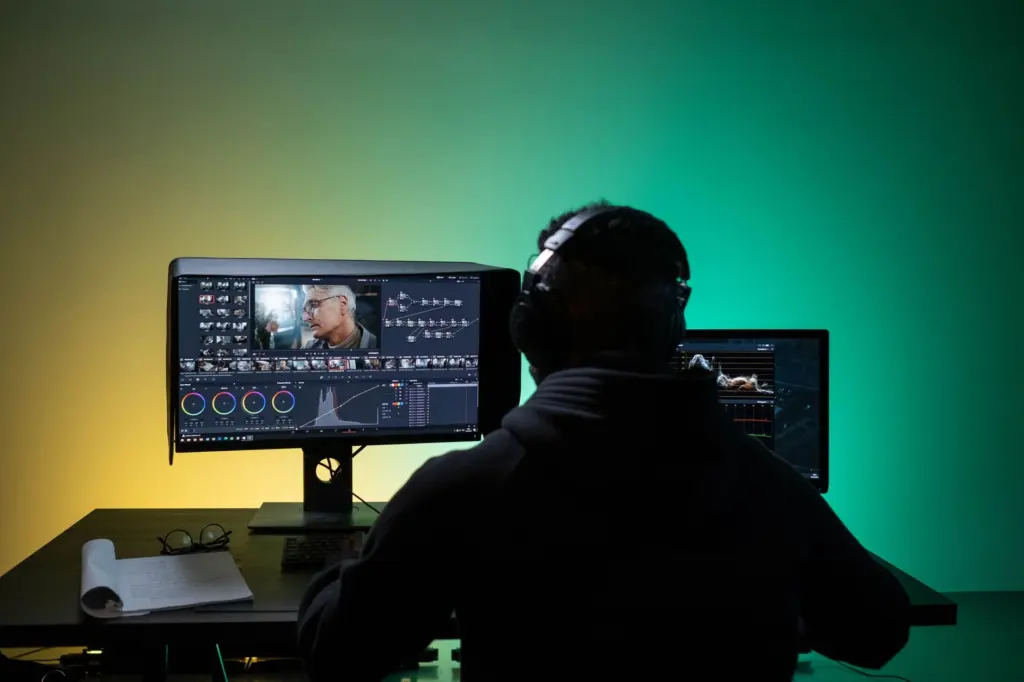
To remove the green background, select the screen colour with a colour picker, tune the key until the green is gone, then clean the edges. WeVideo’s guide shows the process in its editor, and most keyers follow the same pattern.
- Open the keying tool. In WeVideo, this is under Edit, then Keying, with the footage on a track above your background.
- Pick the green. Use the colour picker tool to select the green area in the preview window.
- Adjust key sensitivity. Raise or lower it until the screen disappears without eating into the subject.
- De-fringe the edges. WeVideo describes refining edges by de-fringing to remove the green outline around hair and clothing.
- Add the background. Place the new image or video on the track below the keyed clip so it shows through the transparent area.
Evenly lit footage makes the later steps nearly effortless. If you find yourself fighting the sensitivity control, the fix is usually back on set, not in the software.
Fixing common keying problems
Most keying faults trace back to lighting or separation, so fix the cause on set where you can and use software controls for what remains. Nearstream lists the typical symptoms and remedies:
- Green tint on the subject (spill). Green light reflecting onto the person is fixed with a spill suppressor in your editing software to neutralise the unwanted hues. More distance from the screen reduces it at the source.
- Bright halo around the edges. Refine the key by adjusting edge feathering in post-production, and keep lighting separation between subject and backdrop on the next shoot.
- Grainy or noisy key. Poor lighting or low camera resolution often causes this, so brighter, even lighting and a higher-resolution recording help.
- Patchy transparency across the screen. Uneven screen colour is the usual culprit, so go back to soft, diffused light and remove hotspots and wrinkles that cast shadows.
- Shadows from the subject on the screen. Move the subject forward and keep the screen lights independent of the subject lights.
Shoot-to-export checklist
- Choose a backdrop size that fits your framing and hang it smooth.
- Light the screen with soft, diffused light and check it looks uniform on the camera monitor.
- Light the subject separately, angled to match the new background.
- Position the subject well forward of the screen and lock the camera off.
- Check clothing, glasses and props for green or shine.
- Key the footage, then adjust sensitivity, de-fringe and apply spill suppression.
- Place the new background behind the subject, review the edges, then export.
Once the basic key is reliable, you can build more elaborate composites, such as the one in How To Create A Realistic Explosion Green Screen Effect: A Practical 2026 Guide. If a project outgrows a DIY set, How To Choose The Right Corporate Video Production Company: A Practical Guide For 2026 explains how to pick a crew.
Frequently asked questions
Should I use a green or blue screen?
Green is the usual default because it provides more luminance than blue and is easier to light. Choose blue when green would conflict with the subject, such as green clothing or a green plant in shot.
Can I shoot a green screen with natural light?
Outdoors, natural light may be enough to light the screen. Indoors, Savage Universal recommends professional lights, because the goal is contrast between background and subject with an evenly lit screen.
Do I need a cove for full-body shots?
A cove is helpful. It is a curved corner where the wall meets the floor, and it smooths the transition from wall to floor so the join does not show as a line in the key.